Online GPS Camera – Add GPS Location to Photos
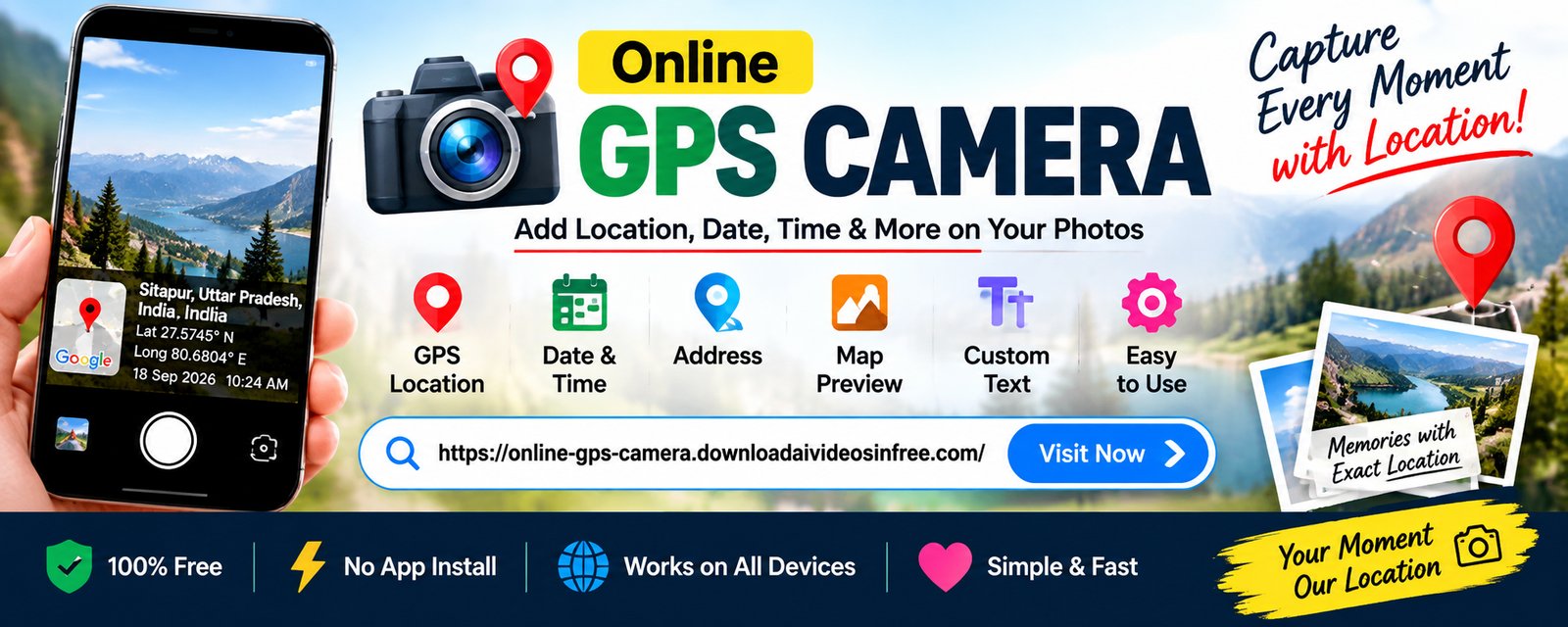
Capture a photo with your device camera and stamp it with your current latitude, longitude, date, time and accuracy — processed locally in your browser, no app to install.
Your browser will ask for camera permission. Allow it to start the live preview.
GPS Information
Waiting for location…Privacy: your browser controls camera and location access. This page processes your photo locally and does not require uploading it to take or download a GPS photo. To show the full address and the small map preview, your coordinates are sent to a mapping service (Geoapify) — turn off "Show address" / "Show map preview" to skip this.
How to Use Online GPS Camera
Follow these steps to capture your first GPS-stamped photo.
- Open the toolScroll up to the Online GPS Camera section on this page — no download needed.
- Allow camera permissionYour browser will prompt you to allow camera access so the live preview can start.
- Allow location permissionYour browser will separately prompt for location access to read GPS coordinates.
- Wait for GPS accuracyGive it a few seconds, especially outdoors, for the accuracy figure to settle to a useful range.
- Check latitude and longitudeConfirm the readout matches roughly where you are.
- Choose overlay settingsPick which fields to show, the overlay position, text size and transparency.
- Capture the photoTap the round capture button to take the shot.
- Review the GPS photoCheck that the overlay text is readable against the background.
- Download the imageTap Download to save the finished photo to your device.
- Share or use the photoUse it for documentation, records, or sharing as needed.
Features
Everything the Online GPS Camera tool includes.
Live Camera Preview
See exactly what you'll capture before you tap the shutter.
GPS Location Detection
Reads your coordinates using the browser's Geolocation API.
Latitude Display
Your current latitude shown to six decimal places.
Longitude Display
Your current longitude shown alongside latitude.
GPS Accuracy Display
See the estimated accuracy radius of your current reading.
Date & Time Stamp
Adds the current date and time to your photo.
Location Information Overlay
Coordinates and timestamp are drawn directly onto the image.
GPS Coordinates Copy
Copy your latitude and longitude to the clipboard in one tap.
Photo Capture
Take a photo directly from the live camera preview.
Instant Photo Preview
Review the finished image immediately after capture.
Download GPS Photo
Save the finished, stamped photo to your device.
Retake Photo
Not happy with the shot? Retake it before downloading.
Front/Rear Camera Switch
Toggle between cameras where your device supports it.
Custom Overlay Position
Place the information card top, bottom, or in a corner.
Multiple Overlay Styles
Choose between a compact card or a full-width bar layout.
Show/Hide GPS Information
Turn the location line on or off before capturing.
Show/Hide Date & Time
Turn the timestamp line on or off before capturing.
Refresh Current Location
Take a fresh GPS reading at any time.
Browser-Based Image Processing
The overlay is drawn using the Canvas API, locally.
Privacy-Focused Local Processing
Designed so your photo doesn't need to leave your device to be captured and stamped.
What Is an Online GPS Camera?
An Online GPS Camera is a browser-based tool that combines your device's camera with its location services to produce a photo that visibly shows where and when it was taken. Instead of installing a dedicated app, you open a web page, grant camera and location permission, and the tool handles the rest — showing a live preview, reading your coordinates, and letting you capture a photo with that information overlaid on top.
How Does GPS Camera Work?
Two standard web technologies do the work. The MediaDevices.getUserMedia() API asks your browser for permission to use the camera and streams live video to the page. Separately, the Geolocation API asks for permission to read your device's current position, returning latitude, longitude and an accuracy estimate in meters. Neither of these requires a plugin or app — they're built into modern browsers.
How GPS Location Is Added to Photos
When you tap capture, the current video frame is drawn onto an HTML5 <canvas> element. The tool then draws a second layer on top — a small card or bar containing the fields you've chosen (latitude/longitude, accuracy, date and time) — directly onto that same canvas. The result is a single flattened image where the GPS information is part of the picture itself, not a separate file or metadata tag that could get stripped out later.
Benefits of GPS Photos
A photo with a visible location and timestamp is useful whenever you need to show, at a glance, where and when something was documented — without asking the viewer to open a separate map or metadata viewer. Because the information is burned into the image, it survives being shared through channels that normally strip EXIF metadata, such as many messaging apps.
Online GPS Camera vs Traditional GPS Camera Apps
A native app has to be downloaded, installed, and kept updated, and it usually asks for broader device permissions up front. A browser-based GPS camera runs the moment you open the page, asks only for the camera and location permissions it actually needs at the moment it needs them, and takes no storage space on your device once you're done. The trade-off is that a browser tool depends on your browser's camera and geolocation support, which can vary slightly between devices.
GPS Accuracy Explained
The accuracy figure shown by the tool is an estimate, in meters, of how far your true position might be from the reported coordinates. It is not a guarantee of exact precision.
What affects accuracy
Whether you're indoors or outdoors, nearby tall buildings or dense tree cover, weather, and whether your device is using GPS satellites, Wi-Fi positioning, or cell-tower triangulation all change the result.
Typical ranges
Outdoors with a clear sky, phone GPS often lands within a few meters to around 15–20 meters. Indoors, or on desktop computers without a GPS chip, accuracy can be anywhere from tens to hundreds of meters.
We do not claim the coordinates shown are perfectly accurate. Always treat the accuracy figure as a useful estimate, and verify critical location data independently where precision matters.
Use Cases
Legitimate, everyday situations where a GPS-stamped photo is genuinely useful.
- Field surveys
- Construction site documentation
- Property inspection
- Travel memories
- Outdoor activities
- Site visits
- Delivery documentation
- Agricultural field records
- Personal travel records
- Project documentation
- Photography notes
- Location-based records
A GPS-stamped photo is a helpful personal or internal record. It is not automatically legal proof or official government evidence — check the specific requirements of whoever is requesting the documentation.
Using GPS Camera by Device
How to Use GPS Camera on Android
Open this page in Chrome or another modern Android browser, tap Allow when prompted for camera access, then tap Allow again when prompted for location. Make sure Location is turned on in your phone's system settings — a browser cannot read GPS coordinates if location services are switched off at the device level.
How to Use GPS Camera on iPhone
Open this page in Safari. iOS will ask for camera permission and, separately, for location permission. If location doesn't work, check Settings → Privacy & Security → Location Services is on, and that your browser is allowed to use it.
How to Use GPS Camera on Computer
Any desktop or laptop with a webcam can use this tool in Chrome, Edge, Firefox, or Safari. Location accuracy on desktops is usually lower than on phones, since most computers don't have a dedicated GPS chip and rely on Wi-Fi or IP-based positioning instead.
Privacy & Security
What the tool accesses, and why.
Camera access
Controlled entirely by your browser. It's requested only to show the live preview and let you capture a photo, and can be revoked at any time from your browser's site settings.
Location access
Controlled entirely by your browser. It's requested only to read your GPS coordinates for the overlay, and can be revoked at any time from your browser's site settings.
Local processing
The captured frame and the overlay are drawn together on your device's canvas. This tool does not require uploading your photo to a server to take it, overlay it, or download it.
Your control
You can revoke camera or location permission at any time through your browser settings, and nothing prevents you from simply closing the tab.
Privacy Tips
- Think before sharing GPS-stamped photos publicly — they reveal exactly where you were.
- Review overlay settings and hide the location field for photos you plan to post publicly.
- Revoke camera/location permissions from your browser when you're done if you share this device with others.
- Read the full Privacy Policy for details on cookies, analytics and advertising, if used on this site.
Troubleshooting
Camera not opening
Make sure you tapped Allow on the camera permission prompt. Check that no other app or browser tab is currently using the camera, and that the page is loaded over HTTPS.
Location not detected
Confirm location permission was granted and that Location Services are enabled in your device's system settings, not just in the browser.
Permission blocked
If you previously selected "Block", open your browser's site settings for this page and change the camera/location permission back to "Allow", then reload.
HTTPS issue
Camera and location APIs are restricted to secure (HTTPS) pages in modern browsers. Make sure you're accessing this tool via an https:// address.
GPS accuracy poor
Move to an open outdoor area away from tall buildings, wait a few seconds, and tap Refresh Location.
Black camera preview
Try reloading the page, closing other apps using the camera, or switching between front and rear camera.
Front camera unavailable
Some devices or browsers only expose one camera to web pages. Try the camera-switch button; if nothing changes, your browser may not expose a second camera.
Rear camera unavailable
Same as above — this depends on what your specific browser and device combination exposes to web pages.
Browser compatibility
Use an up-to-date version of Chrome, Edge, Safari, or Firefox for the most reliable camera and geolocation support.
Desktop location limitations
Desktops without a GPS chip rely on Wi-Fi/IP-based positioning, which is typically far less precise than a phone's GPS.
Slow GPS detection
The first reading after granting permission can take a few seconds, especially indoors. Give it a moment before tapping Refresh Location.
Incorrect location
Try refreshing the location, moving outdoors, and confirming Wi-Fi is turned on, since many devices use it to assist positioning.
Photo download problem
Make sure your browser allows downloads from this site and that you're not in a private/incognito mode that blocks file saves.
Browser Compatibility
Camera and geolocation support depends on your specific browser version, device hardware, and permissions.
| Browser | Camera | Geolocation |
|---|---|---|
| Chrome | Supported | Supported |
| Microsoft Edge | Supported | Supported |
| Safari | Supported | Supported |
| Firefox | Supported | Supported |
Not every browser or device offers identical functionality — some older browsers or restricted in-app browsers may not support one or both features.
Frequently Asked Questions
What is an Online GPS Camera?
An Online GPS Camera is a browser-based tool that opens your device camera, reads your current GPS coordinates using the browser's Geolocation API, and lets you add that location along with the date and time onto a photo before downloading it. No app installation is required.
How does GPS Camera work online?
It uses the Camera API to show a live preview and capture a frame, and the Geolocation API to read your latitude, longitude and accuracy. When you capture a photo, this information is drawn onto the image using the Canvas API, entirely in your browser.
Does Online GPS Camera need an app?
No. It runs entirely in your mobile or desktop browser. There is nothing to install and no account to create.
How does the website get my location?
Your browser asks you directly, using its own built-in permission prompt. If you allow it, the Geolocation API returns your coordinates to the page. The site never sees your location unless your browser grants that permission.
Why does the browser ask for location permission?
Websites cannot read GPS coordinates without your explicit, browser-controlled consent. This is a standard browser security feature that this website cannot bypass or pre-approve.
Why is my GPS accuracy low?
Accuracy depends on your device hardware, whether you're indoors or outdoors, nearby buildings, and whether GPS, Wi-Fi, or cell-tower positioning is being used. It's usually much better outdoors in open areas.
Can I use GPS Camera on Android?
Yes, in modern mobile browsers such as Chrome and Edge on Android, as long as camera and location permissions are granted.
Can I use GPS Camera on iPhone?
Yes, in Safari and other supported browsers. iOS may require Location Services to be enabled system-wide in addition to the in-page prompt.
Can I use it on a computer?
Yes, if your computer has a webcam. Desktop location accuracy is typically lower, since most computers rely on Wi-Fi or IP-based positioning rather than GPS hardware.
Does the tool require HTTPS?
Yes. Browsers only allow camera and geolocation access on secure HTTPS pages (or on localhost during development).
Are my photos uploaded?
The photo capture and GPS overlay are produced locally in your browser using the Canvas API and are not uploaded to a server as part of that process.
Is my location stored?
The coordinates read by your browser are used to render the overlay and are not stored on a server by this tool. See the Privacy Policy for full details.
Can I download the GPS photo?
Yes. After capturing, use the Download button to save the finished image with the overlay burned in.
Can I add latitude and longitude?
Yes, they're shown on screen and, if enabled, drawn directly onto the downloaded photo.
Can I add date and time?
Yes, this can be toggled on or off in the overlay settings before capture.
Can I switch cameras?
Yes, on devices with both front and rear cameras, using the camera-switch button, where your browser and hardware support it.
Why is my camera not opening?
Usually because permission was denied, another app/tab is using the camera, the page isn't on HTTPS, or the browser doesn't support camera access. See Troubleshooting above.
Why is location permission denied?
You may have chosen "Block" on the prompt, or location may be disabled at the operating-system level. Re-enable it from your browser's site settings.
How can I improve GPS accuracy?
Move outdoors away from tall buildings, wait a few seconds after granting permission, keep Wi-Fi on, and use Refresh Location for a new reading.
Can I use the tool offline?
The page needs to load once over the internet. After that, capture and overlay drawing happen locally, but a fresh GPS reading still needs your device's location services.
What happens if my browser does not support camera access?
You'll see a clear message explaining that camera access is unavailable, with a suggestion to try an up-to-date version of Chrome, Edge, Safari, or Firefox.
Why Use This Tool?
Browser-based
No app installation required — works directly in your mobile or desktop browser.
Permission-controlled
Camera and location access are entirely governed by your browser's own permission system.
Local processing
Photo capture and the GPS overlay are designed to happen on your device.
Simple interface
A clear, single-screen workflow: capture, review, download.
Mobile-friendly
Built mobile-first, with thumb-friendly controls for phone use.
Transparent
Straightforward Privacy Policy explaining exactly what's accessed and why.
More Online Tools
Other tools from Online GPS Camera.